
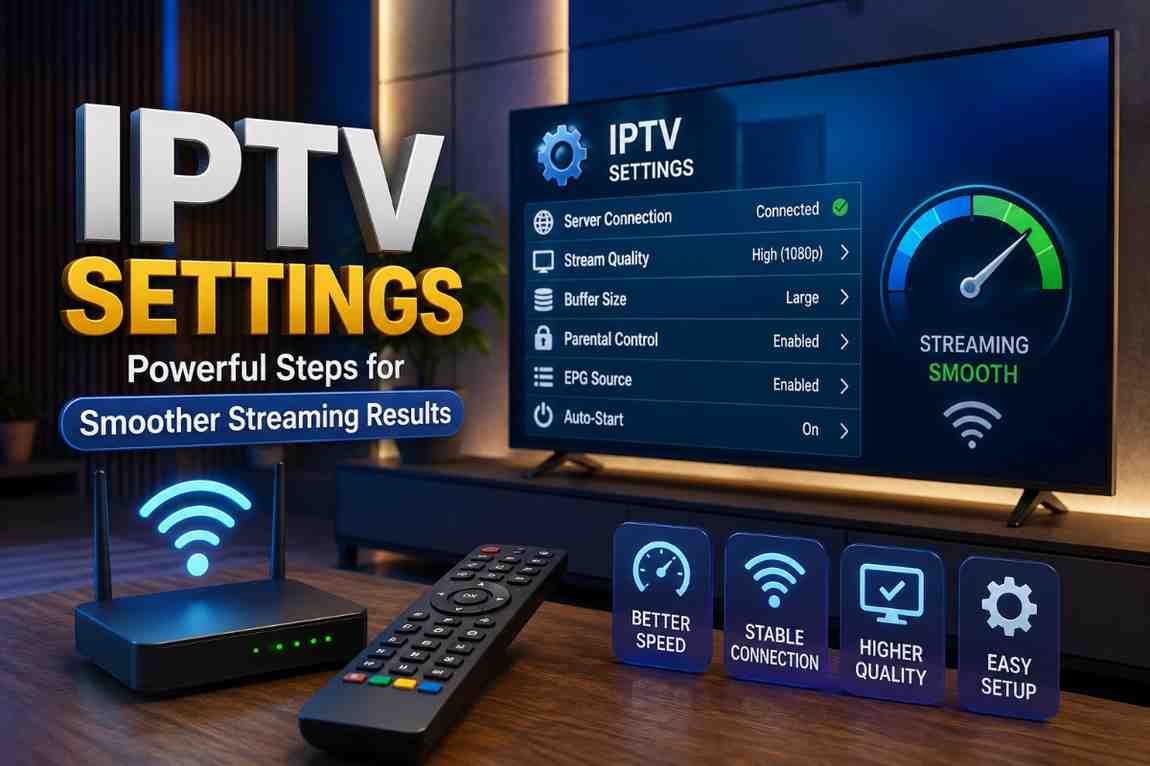
Explore IPTV settings with simple tips to improve playback, reduce streaming issues, and create a smoother, clearer viewing experience across your favorite devices.
A good IPTV experience is not only about having a reliable internet connection. The right IPTV settings can also make a noticeable difference in how content plays on your device. Small adjustments to video quality, buffering, network preferences, and player options can help create a cleaner and more comfortable viewing experience.
▶️ Set Up Smoother Playback
Whether you are new to IPTV or already use it regularly, understanding the available settings can make your setup easier to manage. Instead of changing everything at once, it is better to adjust a few options and see how they affect playback.
Why IPTV Settings Matter
IPTV applications often include several controls designed to improve the way streams are delivered and displayed. These options can vary depending on the app, device, and service you use.
Correct settings may help you:
- Improve overall playback stability
- Reduce unnecessary buffering
- Choose a suitable video resolution
- Adjust the appearance of content
- Manage subtitles and audio
- Make navigation more convenient
- Match streaming quality with your internet connection
The goal is not always to select the highest possible quality. The best setup is one that works smoothly with your available network and device.
Key IPTV Settings to Review
Video Quality
Video quality is one of the first settings worth checking. Higher resolutions can provide sharper images, but they also require more bandwidth.
If your connection handles high-resolution streams comfortably, you may prefer a higher quality option. If playback frequently pauses, testing a lower resolution can be a practical solution.
Consider:
- HD for everyday viewing
- Full HD for sharper detail
- 4K when your device and connection support it
- Automatic quality when you want the app to adapt
Choosing a realistic resolution can often provide a better experience than constantly pushing your connection to its limit.
Buffering Options
Buffering happens when a player needs more data before continuing playback. Some IPTV apps provide buffering controls that allow users to adjust how much content is loaded in advance.
A slightly larger buffer may be useful when your connection occasionally fluctuates. However, excessive buffering settings do not automatically solve every network problem.
Try different options gradually and keep the setting that provides the most consistent playback.
Audio Settings
Clear video is important, but audio quality also affects the overall experience. IPTV players may include settings for audio tracks, volume normalization, digital output, or language selection.
Useful adjustments can include:
- Selecting your preferred audio language
- Choosing the correct audio track
- Enabling supported audio output
- Adjusting volume normalization when available
- Checking device sound settings
If audio and video appear out of sync, restarting the stream or testing another supported player mode may help.
IPTV Network Settings for Better Playback
Your network plays a major role in IPTV performance. Even well-configured IPTV settings cannot completely compensate for an unstable connection.
Use a Stable Connection
Whenever possible, use a dependable Wi-Fi connection or a wired Ethernet connection. Ethernet can be especially useful for smart TVs, streaming boxes, and other stationary devices.
For Wi-Fi users, consider:
- Keeping the router in a suitable location
- Reducing unnecessary distance from the router
- Avoiding heavy downloads during streaming
- Updating router firmware when appropriate
- Connecting to a less congested Wi-Fi band if supported
A stable connection is usually more valuable than simply having a high advertised internet speed.
Avoid Unnecessary Network Load
Other devices using the same network can affect streaming performance. Large downloads, cloud backups, online gaming, and multiple high-resolution streams may compete for available bandwidth.
For a smoother IPTV session, try reducing unnecessary network activity while watching demanding content.
IPTV Settings by Device
Different devices may require different adjustments. The same configuration may not produce identical results everywhere.
| Device | Settings to Check | Helpful Approach |
|---|---|---|
| Smart TV | Resolution, audio, network | Match quality to connection |
| Android TV | Player, buffer, video quality | Test player options gradually |
| Streaming Box | Resolution, display, network | Use supported display settings |
| Smartphone | Quality, data use, subtitles | Balance quality and mobile data |
| Computer | Browser/player, resolution | Keep software and drivers updated |
The best approach is to focus on the settings available on your particular device rather than copying another user’s configuration exactly.
How to Optimize IPTV Settings Step by Step
1. Check Your Internet Connection
Start by making sure your connection is stable. If other online services are also slow, the problem may not be related to your IPTV application.
2. Choose a Suitable Resolution
Select a video quality that your device and connection can comfortably handle. If high-quality playback causes frequent interruptions, test a lower option.
3. Adjust Buffering Carefully
If your IPTV player includes buffer controls, make small changes rather than choosing extreme values immediately.
4. Test the Player
Some applications support more than one playback engine. If the option is available, testing another compatible player may help identify whether playback problems are related to the current player.
5. Review Audio and Subtitle Options
Set your preferred language, subtitle style, and audio options. This makes everyday navigation easier and keeps your viewing setup personalized.
6. Restart After Major Changes
After changing several settings, restart the application or device. This can help ensure the new configuration is properly applied.
Common IPTV Setting Mistakes to Avoid
Changing too many options at once can make troubleshooting harder. Keep your setup simple and record the changes you make.
Avoid these common mistakes:
- Selecting maximum quality without checking connection capacity
- Changing multiple settings simultaneously
- Ignoring device limitations
- Using outdated IPTV applications
- Blaming the app for every buffering problem
- Forgetting to check your home network
- Choosing settings copied from a completely different device
A practical configuration is usually better than an aggressive one.
Simple IPTV Optimization Checklist
Before streaming, use this quick checklist:
- Check your internet connection
- Select a suitable video resolution
- Review buffering options
- Confirm audio preferences
- Set subtitle preferences
- Check your device display settings
- Close unnecessary background activity
- Keep your IPTV app updated
- Restart the app if playback behaves unusually
These small steps can make your setup easier to maintain.
Finding the Right IPTV Settings for Your Setup
There is no single IPTV configuration that works perfectly for every user. Your ideal settings depend on your internet connection, device, display resolution, application, and the quality of the stream itself.
Start with moderate settings and make one change at a time. If playback improves, keep the adjustment. If it becomes worse, return to the previous option.
This simple testing method helps you understand which settings actually benefit your setup.
Final Thoughts
The right IPTV settings can help create a more comfortable and consistent streaming experience. From video quality and buffering to audio, subtitles, and network configuration, each option has a specific role.
The key is to avoid overcomplicating the setup. Choose settings that match your device and connection, make gradual adjustments, and test the results. With a little fine-tuning, you can build an IPTV setup that feels smoother, clearer, and easier to use.
FAQs
What are the best IPTV settings for smooth streaming?
The best settings depend on your device and internet connection. Start with a suitable video resolution, stable network connection, and moderate buffering options.
Can IPTV settings reduce buffering?
Adjusting settings may help when buffering is caused by unsuitable video quality or player configuration. However, network congestion or stream-side issues may require a different solution.
Should I always use the highest IPTV video quality?
Not necessarily. Higher resolution requires more bandwidth. A slightly lower quality can provide smoother playback if your connection struggles with high-resolution streams.
Does Wi-Fi affect IPTV performance?
Yes. Weak or unstable Wi-Fi can cause interruptions. A stronger Wi-Fi connection or Ethernet connection may provide more consistent performance.
Why does IPTV still buffer after changing settings?
Buffering can have several causes, including network congestion, device limitations, application problems, or issues with the stream source. Settings are only one part of the overall setup.