
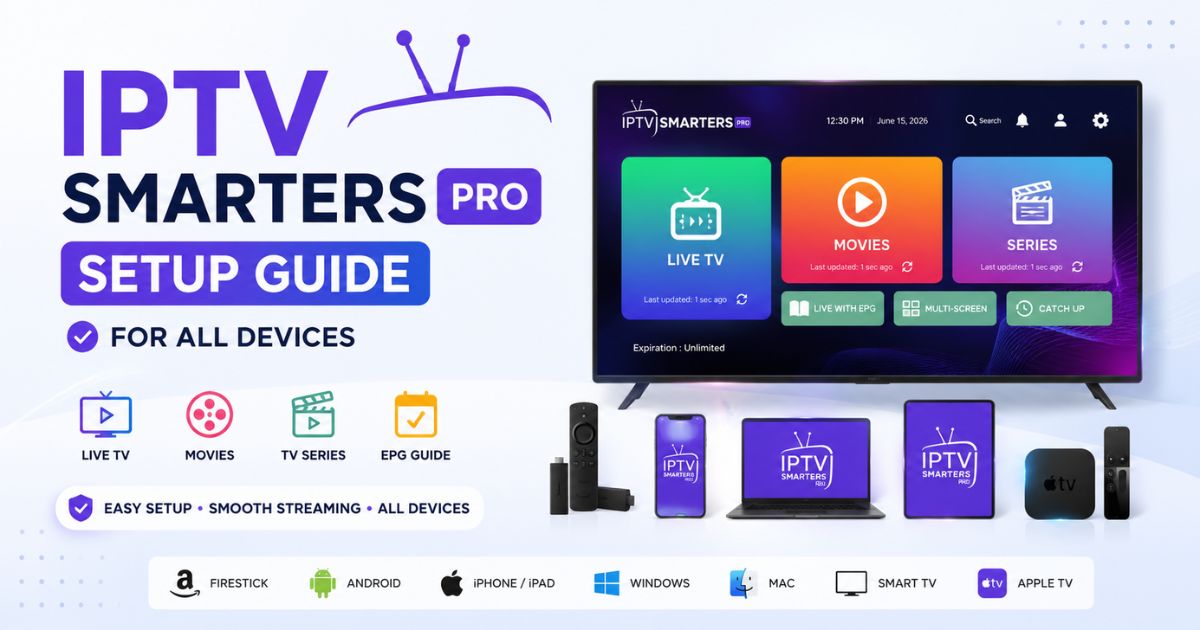
IPTV Smarters Pro is a popular IPTV player that lets users stream live TV, movies, TV series, and catch-up content from their IPTV service provider. It does not include channels or content itself; instead, it works by connecting to an IPTV subscription using Xtream Codes API, an M3U playlist, or a local playlist.
With support for Firestick, Android, iPhone, Smart TVs, Windows, Mac, Apple TV, and Android TV, it offers a consistent streaming experience across multiple devices. This guide explains how to install IPTV Smarters Pro, configure it correctly, optimize its settings for smooth playback, troubleshoot common issues, and make the most of its features, whether you’re a beginner or an experienced IPTV user.
IPTV Smarters Pro Setup Guide for All Devices
Installing IPTV Smarters Pro is one of the easiest ways to enjoy live TV, movies, TV shows, and catch-up content from your IPTV provider. Whether you’re using a Firestick in your living room, an Android phone while traveling, or a Smart TV at home, the app offers a clean interface and smooth streaming experience.

The biggest advantage of IPTV Smarters Pro is its flexibility. It doesn’t provide TV channels by itself. Instead, it acts as a media player that connects to your IPTV provider using login credentials such as an M3U playlist or Xtream Codes API.
If you’re new to IPTV, don’t worry. This guide walks you through every step, from downloading the app to configuring it on different devices, solving common issues, and optimizing playback for the best streaming experience.
What Is IPTV Smarters Pro?
IPTV Smarters Pro is a popular IPTV player designed to stream content from IPTV service providers. Instead of hosting channels, it allows users to import playlists and access live television, video-on-demand (VOD), TV series, and electronic program guides (EPG).
Because it supports multiple platforms, many households use the same app across several devices while keeping a consistent viewing experience.
Unlike traditional cable apps, IPTV Smarters Pro lets users organize playlists, create multiple profiles, and switch between different IPTV subscriptions if supported by their provider.
Why Millions Choose IPTV Smarters Pro
Several IPTV players are available today, but IPTV Smarters Pro remains one of the most widely used because it combines simplicity with advanced functionality.
Some reasons users prefer it include:
- Easy-to-use interface
- Fast playlist loading
- Multi-screen viewing
- EPG support
- External player compatibility
- Catch-up TV support
- Multiple user profiles
- Subtitle support
- Favorites management
- Cross-platform availability
Whether you’re a beginner or an experienced IPTV user, the app provides enough customization without becoming difficult to navigate.
Main Features of IPTV Smarters Pro
Live TV Streaming
Watch live television channels from your IPTV provider with organized categories and quick navigation.
Movies and TV Shows
Access VOD libraries with posters, descriptions, categories, and search functionality.
Electronic Program Guide (EPG)
The built-in TV guide displays current and upcoming programs, making it easier to browse channels.
Multi-Screen
Watch two or more channels simultaneously on supported devices.
This feature is particularly useful during sports events.
External Player Support
If you prefer another media player, IPTV Smarters Pro allows integration with compatible external players for additional codec support.
Multi-User Management
Families can configure separate IPTV accounts on one device and switch between them without deleting existing playlists.
What You Need Before Installation
Before beginning setup, make sure you have:
- A stable internet connection
- IPTV Smarters Pro installed
- IPTV subscription from a provider
- Xtream Codes login details or M3U URL
- Username
- Password
- Server URL
Without valid IPTV credentials, the application cannot display channels.
Devices Supported by IPTV Smarters Pro
One of the reasons IPTV Smarters Pro is so popular is its broad device compatibility.
| Device | Supported |
|---|---|
| Android Phones | ✅ |
| Android Tablets | ✅ |
| Fire TV Stick | ✅ |
| Fire TV Cube | ✅ |
| Android TV | ✅ |
| Google TV | ✅ |
| Windows PC | ✅ |
| Mac | ✅ |
| iPhone | ✅ |
| iPad | ✅ |
| Samsung Smart TV | ✅ |
| LG Smart TV | ✅ |
| Apple TV | ✅ |
This wide support allows users to enjoy the same IPTV account across multiple devices, depending on their provider’s connection policy.
How IPTV Smarters Pro Login Works
The application offers different ways to import IPTV content.
1. Xtream Codes API (Recommended)
You’ll enter:
- Username
- Password
- Server URL
This method usually loads channels, movies, series, and EPG automatically, making it the easiest option for most users.
2. M3U Playlist
Your IPTV provider supplies an M3U playlist URL or file.
Simply paste the URL into IPTV Smarters Pro, and the app imports your available content.
3. Local Playlist
Some users store playlist files directly on their devices and load them locally without using a remote URL.
How to Install IPTV Smarters Pro on Firestick
Firestick remains one of the most popular streaming devices for IPTV users.
Step 1
Open Settings.
Step 2
Navigate to:
My Fire TV
Step 3
Enable installation from unknown sources if required for your installation method.
Step 4
Install the IPTV Smarters Pro application using your preferred installation source.
Step 5
Launch the application.
Step 6
Accept the license agreement.
Step 7
Choose your preferred login method.
Step 8
Enter your IPTV provider credentials.
Step 9
Wait for playlists to download.
Step 10
Start watching live TV.
Install IPTV Smarters Pro on Android Phones
Android installation is usually straightforward.
- Open your device’s app store or install the APK from a trusted source if appropriate for your device.
- Install IPTV Smarters Pro.
- Open the app.
- Accept permissions if prompted.
- Select Login with Xtream Codes API or Load Your Playlist.
- Enter the credentials provided by your IPTV service.
- Allow the app to sync your channels and VOD library.
- Browse content and begin streaming.
The first synchronization may take a few minutes, especially if your provider offers thousands of channels or movies.
Install IPTV Smarters Pro on iPhone and iPad
For iOS users:
- Download IPTV Smarters Pro from the App Store if available in your region.
- Open the app after installation.
- Accept the terms and conditions.
- Choose your preferred login option.
- Enter the server URL, username, and password or import your M3U playlist.
- Wait while the app downloads channel information and the program guide.
- Start watching your available content.
The interface on iPhone and iPad closely matches the Android version, making it easy to switch between devices.
How to Install IPTV Smarters Pro on Windows PC
If you enjoy watching IPTV on a larger screen while working or browsing, Windows is an excellent choice. IPTV Smarters Pro offers a desktop version with a familiar interface that’s easy to navigate.
Installation Steps
- Download the Windows version of IPTV Smarters Pro from the official source.
- Open the installer and follow the on-screen instructions.
- Launch the application after installation.
- Accept the terms of use.
- Select your preferred login method.
- Enter your IPTV credentials.
- Allow the app to load your channels and video library.
Why Use IPTV Smarters Pro on Windows?
- Larger viewing area
- Easy keyboard and mouse navigation
- Smooth HD and 4K playback (depending on your hardware)
- Convenient for multitasking
How to Install IPTV Smarters Pro on Mac
Mac users can also enjoy IPTV Smarters Pro with a similar setup process.
Steps
- Download the macOS version from the official website.
- Open the installation package.
- Drag the application into the Applications folder if prompted.
- Launch IPTV Smarters Pro.
- Enter your IPTV login details.
- Wait for playlists and categories to sync.
If your Mac displays a security warning, allow the application through your system’s privacy settings if you trust the source.
IPTV Smarters Pro Setup on Samsung Smart TV
Samsung Smart TVs offer a comfortable viewing experience without needing an external streaming device.
Setup Process
- Open the Smart Hub.
- Search for IPTV Smarters Pro if available in your region.
- Install the application.
- Launch it.
- Choose a login method.
- Enter your IPTV credentials.
- Wait for synchronization.
For older Samsung TVs that don’t support the app, many users choose external devices such as Fire TV Stick or Android TV boxes.
Install IPTV Smarters Pro on LG Smart TV
LG Smart TVs running webOS support IPTV applications in many regions.
Steps
- Open the LG Content Store.
- Search for IPTV Smarters Pro.
- Install the app.
- Open it.
- Log in using your IPTV subscription details.
- Allow the app to download channels and the TV guide.
Install IPTV Smarters Pro on Android TV and Google TV
Android TV provides one of the best IPTV experiences because the interface is optimized for remote controls.
Installation
- Open Google Play Store.
- Search for IPTV Smarters Pro.
- Install the application.
- Launch it.
- Accept permissions.
- Enter your IPTV credentials.
- Allow the app to load.
Popular Android TV devices include:
- NVIDIA Shield TV
- Chromecast with Google TV
- Xiaomi TV Box
- Mecool devices
- Android Smart TVs
How to Install IPTV Smarters Pro on Apple TV
Apple TV users can install IPTV Smarters Pro if it is available for their region and tvOS version.
Steps
- Open the App Store.
- Search for IPTV Smarters Pro.
- Install the app.
- Open it.
- Enter your IPTV provider information.
- Sync playlists.
- Start streaming.
Best IPTV Smarters Pro Settings
A few simple adjustments can improve performance and reduce buffering.
Enable Hardware Decoding
Hardware decoding helps your device process video more efficiently, especially for HD and 4K streams.
Benefits
- Better playback
- Reduced lag
- Lower CPU usage
Update the EPG Regularly
Refreshing the Electronic Program Guide keeps program listings accurate.
Use a Wired Connection When Possible
Although Wi-Fi is convenient, an Ethernet connection usually provides:
- Lower latency
- More stable streaming
- Fewer interruptions
Adjust Buffer Size
If your internet connection fluctuates, increasing the buffer size may help prevent playback interruptions.
Organize Favorites
Save your most-watched channels to the Favorites section for quicker access.
Common IPTV Smarters Pro Setup Problems
Even with a simple installation process, users occasionally encounter issues.
| Problem | Possible Cause | Solution |
|---|---|---|
| Login failed | Incorrect credentials | Verify username, password, and server URL |
| Playlist not loading | Expired IPTV subscription | Contact your IPTV provider |
| Buffering | Slow internet | Improve connection or lower video quality |
| No EPG | Guide not downloaded | Refresh or reload the EPG |
| App crashes | Outdated version | Update the application |
| Black screen | Unsupported codec | Try hardware decoding or an external player |
Tips for Better Streaming Performance
For the best experience:
- Use internet speeds of at least 25 Mbps for HD and 50 Mbps or more for 4K.
- Close unused apps running in the background.
- Restart your streaming device periodically.
- Keep IPTV Smarters Pro updated.
- Restart your router occasionally.
- Use a reliable IPTV provider with stable servers.
IPTV Smarters Pro Free vs Pro
| Feature | Free | Pro |
|---|---|---|
| Live TV | ✅ | ✅ |
| Movies | ✅ | ✅ |
| Series | ✅ | ✅ |
| EPG | ✅ | ✅ |
| Multiple Playlists | Limited | ✅ |
| Multi-Screen | Basic | Advanced |
| User Experience | Good | Enhanced |
| Premium Features | ❌ | ✅ |
| Customization | Limited | More Options |
Which Version Should You Choose?
The free version is suitable for most casual users who simply want to watch live TV and on-demand content. If you need advanced customization, multi-screen support, or enhanced usability, the Pro version may be worth considering.
Is IPTV Smarters Pro Safe?
IPTV Smarters Pro is a media player and does not include or distribute TV channels. Safety depends on where you download the app and the IPTV service you use.
For a safer experience:
- Download the app from official or trusted sources.
- Keep the application updated.
- Protect your login credentials.
- Use a reputable IPTV provider that has the rights to distribute the content you access.
Expert Tips
- Save your IPTV login information in a secure location.
- Refresh playlists if channels are missing.
- Restart the app after major updates.
- Keep your device storage from becoming full.
- Use the Favorites feature to organize frequently watched channels.
- Test your internet speed before troubleshooting playback issues.
- If your provider offers both Xtream Codes and M3U, use Xtream Codes for easier setup and automatic EPG integration.
Common Mistakes to Avoid
Many setup issues are caused by small errors. Avoid these common mistakes:
- Typing the server URL incorrectly.
- Using expired IPTV account details.
- Forgetting to update the app.
- Expecting IPTV Smarters Pro to include channels by itself.
- Ignoring internet speed requirements.
- Installing outdated versions from unknown websites.
Frequently Asked Questions
Does IPTV Smarters Pro provide TV channels?
No. IPTV Smarters Pro is only a media player. You must have an IPTV subscription from a provider to access content.
Can I use IPTV Smarters Pro on multiple devices?
Yes, but the number of simultaneous connections depends on your IPTV provider’s subscription policy.
Which login method is best?
Xtream Codes API is generally the easiest because it automatically imports channels, movies, series, and the EPG.
Why is my playlist not loading?
Check that your username, password, and server URL are correct. Also verify that your IPTV subscription is active.
Does IPTV Smarters Pro support 4K?
Yes. If your IPTV provider offers 4K streams and your device supports 4K playback, the app can play compatible content.
Can I add multiple IPTV subscriptions?
Yes. IPTV Smarters Pro supports multiple playlists or user profiles, making it easy to switch between providers if needed.
Why is the EPG missing?
Refresh the EPG within the app or ask your IPTV provider to confirm that guide data is included with your subscription.
Is IPTV Smarters Pro available on all Smart TVs?
Availability varies by TV brand, operating system, and region. If the app isn’t available, using a compatible streaming device such as an Android TV box or Fire TV Stick is often the easiest alternative.
Key Takeaways
- IPTV Smarters Pro is a feature-rich IPTV player, not an IPTV service.
- It supports Firestick, Android, iPhone, iPad, Windows, Mac, Apple TV, Android TV, Samsung Smart TVs, and LG Smart TVs.
- Xtream Codes API provides the simplest setup experience.
- A stable internet connection and a reliable IPTV provider are essential for smooth streaming.
- Keeping the app updated and optimizing playback settings can improve performance and reduce buffering.
- The Pro version adds extra features for users who want a more advanced viewing experience.
Final Thoughts
IPTV Smarters Pro remains one of the most versatile IPTV players available thanks to its clean interface, broad device compatibility, and support for multiple login methods. Whether you’re streaming on a Firestick, Smart TV, smartphone, or desktop computer, the setup process is straightforward once you have valid IPTV credentials.
Taking a few extra minutes to configure the app correctly—such as enabling hardware decoding, refreshing the EPG, and organizing your favorite channels—can significantly improve your viewing experience. By following the steps in this guide and using a trusted IPTV provider, you’ll be well prepared to enjoy live TV, movies, and series across all your compatible devices with minimal hassle.